


Have you ever wondered how to create or modify a partition in Microsoft Windows? Well, you are in the right place. In this article, we will discuss the steps to create or modify a partition in Windows, so you can organize and manage your hard drive’s space more efficiently.
Have you ever wondered how to create or modify a partition in Microsoft Windows? Well, you are in the right place. In this article, we will discuss the steps to create or modify a partition in Windows, so you can organize and manage your hard drive’s space more efficiently.
Partitioning is the process of dividing a hard drive into multiple, discrete sections, or partitions. Doing so will allow you to install different operating systems or store data files separately. For instance, you can install Windows on one partition, and Linux on another.
The primary advantage of partitioning is that you can manage your data files more efficiently. For instance, you can store your data files into separate partitions from your system files. If your system files become corrupted, you can format that partition without losing your data files.
This article will guide you through the steps to create or modify a partition in Microsoft Windows, the platform with the largest market share.
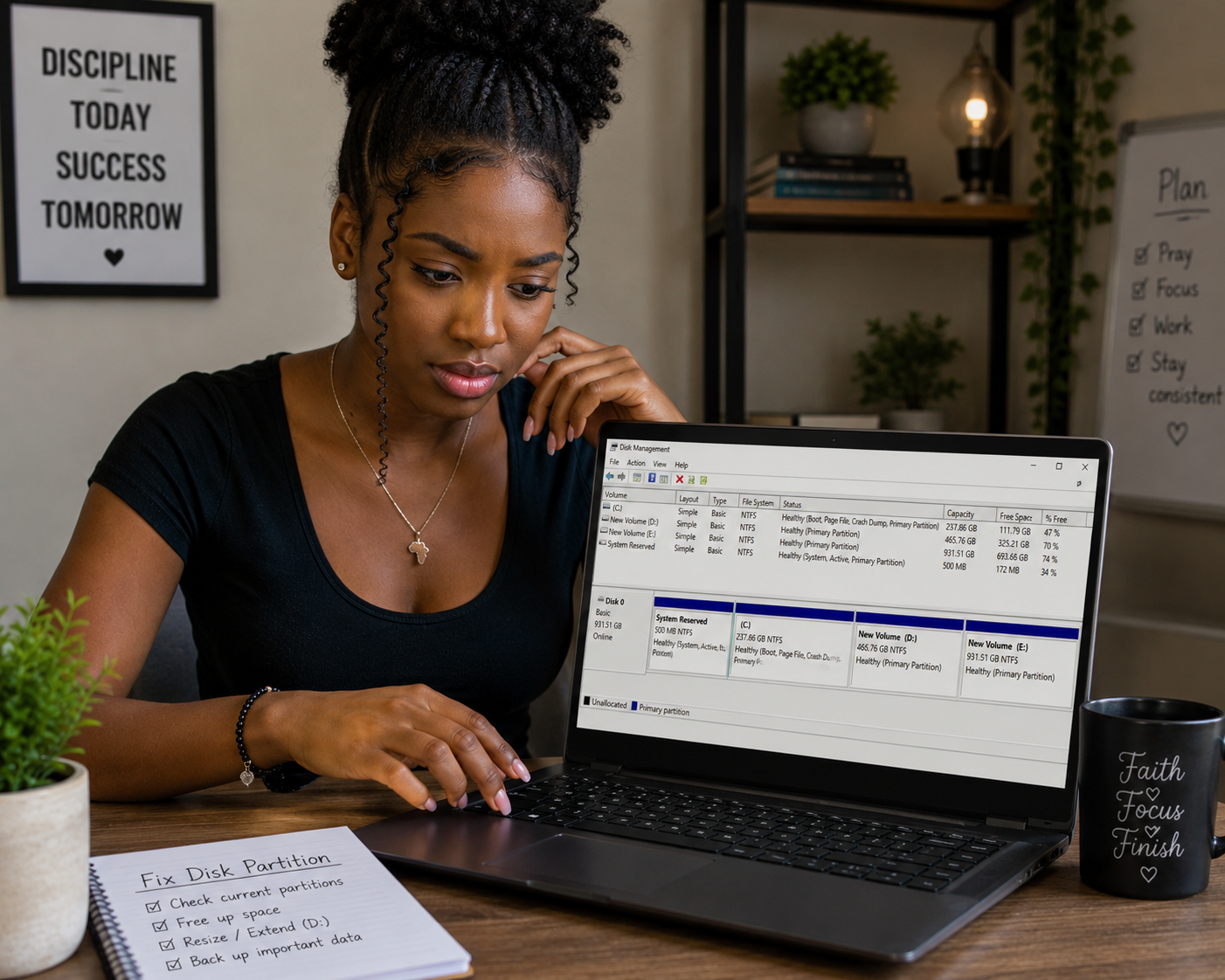
The first step in creating or modifying a partition is checking your hard drive. This step will help you identify the existing partitions and determine the available unallocated spaces.

To check your hard drive, follow these steps:
In this section, we will discuss the steps to create a partition from the unallocated space. This method is ideal if you want to have multiple partitions on the same drive instead of using separate hard drives for different operating systems.

To create a partition, do the following:
The first screen in the New Simple Volume Wizard should show the available unallocated space. If you have multiple drives or partitions, ensure you select the correct one.
On the next screen, select the amount of unallocated space you want to use for the new partition.
On the next screen, specify the size of the new partition you want to create. Windows will recommend a size, but you can modify it to your liking.
In the next screen, select a drive letter for the new partition. Ideally, use an unused letter, but you can overwrite existing ones as well.
On the final screen, select the formatting option. NTFS is the recommended option, but you can also choose FAT32 or exFAT.
After formatting is complete, your new partition will appear in the Disk Management window. It will also be visible in Windows File Explorer.
If you want to increase, decrease, or delete an existing partition, these are the steps to follow:
To increase or decrease the partition size, right-click on the partition and select Extend Volume or Shrink Volume. The size of the partition will be updated as per your input.

To change the drive letter, right-click on the partition and select Change Drive Letter and Paths.
To format an existing partition, right-click on the partition and select Format. Select the formatting option you want to use and follow the on-screen instructions.
Creating or modifying a partition in Microsoft Windows is a straightforward process. Partitioning your hard drive can help you manage your data better, and it’s also useful if you want to install multiple operating systems in the same drive. With this guide, you can create or modify a partition without any hassle.